Support
Getting started
- Install Casement Home on your Mac and open it. The Casement icon appears in the menu bar.
- Install Casement from the App Store on your iPhone, iPad, Apple Vision Pro or Mac, or from Google Play on Android. (Casement on a Mac connects to Casement Home on another Mac.)
- In Casement, choose your Mac. The first time, you pair: check that both screens show the same 6-digit number, then click Allow on your Mac.
Permissions on the Mac
- Screen Recording: to send your Mac's app windows to your device
- Accessibility: to deliver typing and clicks from your device to the Mac. Until you allow it, typing from your device won't reach the Mac
- Local Network: to send windows to your device and receive its input
- System Audio Recording: to play your Mac's sound on your device
Using Casement on a Mac
- You need two Macs: Casement on your Mac connects to Casement Home on another Mac. It can't connect to Casement Home on the same Mac (both would move the same pointer, and the window would show itself). In that case, Casement shows "Can't connect to this Casement Home".
- Windows and menus: each window of an app on the Mac you connect to opens as a window on your Mac. That app's menus appear in your Mac's menu bar.
- Keyboard shortcuts: while one of those windows is in front, ⌘Q, ⌘W and ⌘H go to the app on the other Mac. ⌘Tab and ⌘Space stay on your Mac.
- Quitting Casement: choose Casement › Quit Casement in the menu bar. Clicks in the menus always act on your Mac.
- Typing: you type with your Mac's input sources. Switching the input source switches it on the other Mac too. The row of extra keys, the software keyboard and the software trackpad are on iPhone and iPad only, not on the Mac.
- Clipboard: when you paste with ⌘V into one of those windows, macOS may ask whether Casement can paste. Allow it.
- Local Network: the permission for Casement is in System Settings › Privacy & Security › Local Network.
Using ⌘ shortcuts on Android
When you press ⌘C, ⌘V, ⌘W and the like on a keyboard connected to Android, Android may take them first, so they don't reach your Mac. Swap the ⌘ key (called “Action key” on Android) to Ctrl in Android's settings, and they reach your Mac.
- In Android's Settings, open Input › Physical keyboard › Physical keyboard › Modifier keys.
- Choose “Action key” and set it to “Ctrl”.
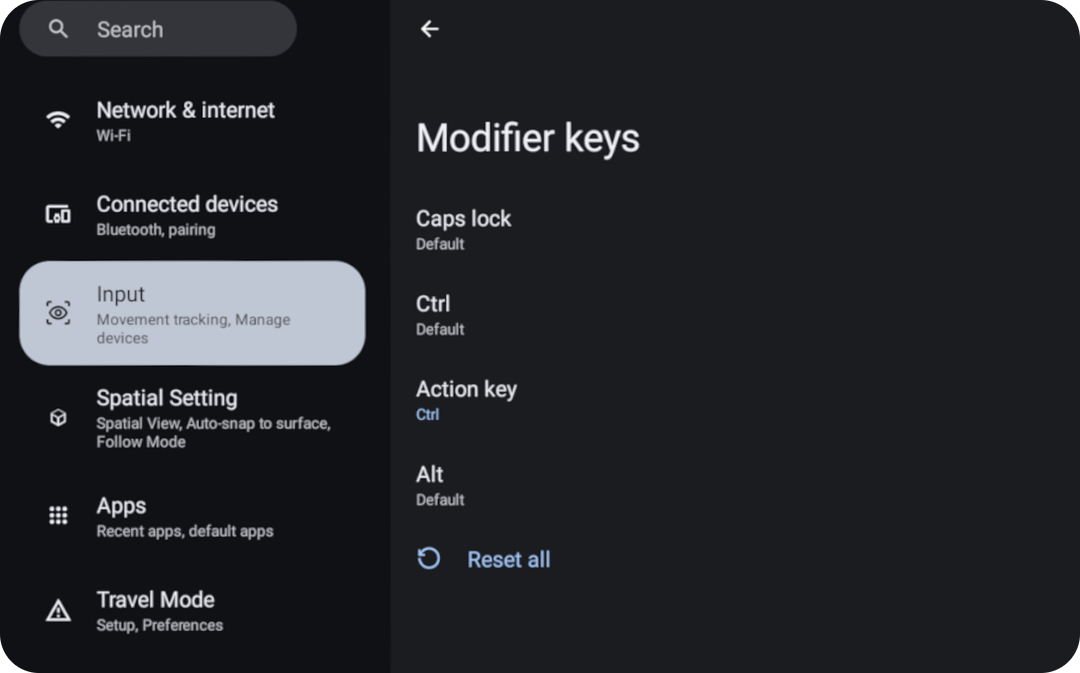
- The location varies by device: the steps above are for XREAL Aura. If you can't find it, search for “Modifier keys” in Settings.
- How it works: Android treats the ⌘ key as Ctrl, so it doesn't take it. Casement sends each key by its position, so your Mac receives ⌘.
- To undo: tap “Reset all” on the same screen.
- If there's no Modifier keys setting: you can copy and paste from the right-click menu.
If you can't connect
- Is Casement Home running on your Mac? (Look for the icon in the menu bar.)
- Are your Mac and your device on the same network? If you are away from home, is Tailscale connected on both?
- On your device, is Local Network access turned on for Casement? (Settings › Privacy & Security › Local Network; on a Mac, System Settings › Privacy & Security › Local Network)
- Are you trying to connect Casement on a Mac to Casement Home on the same Mac? (You need another Mac.)
- On your Mac, are Screen Recording, Accessibility and Local Network turned on for Casement Home? (System Settings › Privacy & Security)
- Is your Mac awake?
Contact
Email us: support@casement.win
To report a security issue such as a vulnerability: security@casement.win